Auto Apply Day Templates
Start each day with your ideal schedule automatically set up. Learn how PolyPlan's Auto Apply Day Templates feature can streamline your weekly planning.
Written By Minh Thư
Last updated Over 1 year ago
What is Auto Apply Day Templates?
Auto Apply Day Templates is an automation feature that automatically applies your chosen schedule templates to each day of the week.
Before you start your day, PolyPlan prepares your schedule according to your predetermined templates, ensuring you wake up to an organized day, every day.
How It Works
Templates are applied automatically before your wake-up time
New tasks are added to your schedule based on the template
Existing events and recurring tasks remain unchanged
The template applies only to the upcoming day
Enable Auto Apply Templates
Use phone app
Navigate to the Extra tab, and select "Automation"
Find the "Auto Apply Day Templates" section, and toggle the switch to enable the feature
Tap on each day of the week, choose a template, and go back to configure another one.
After completing, tap Save in the top right corner to save the changes.
Note: You can leave any day without a template if you prefer to plan it manually.
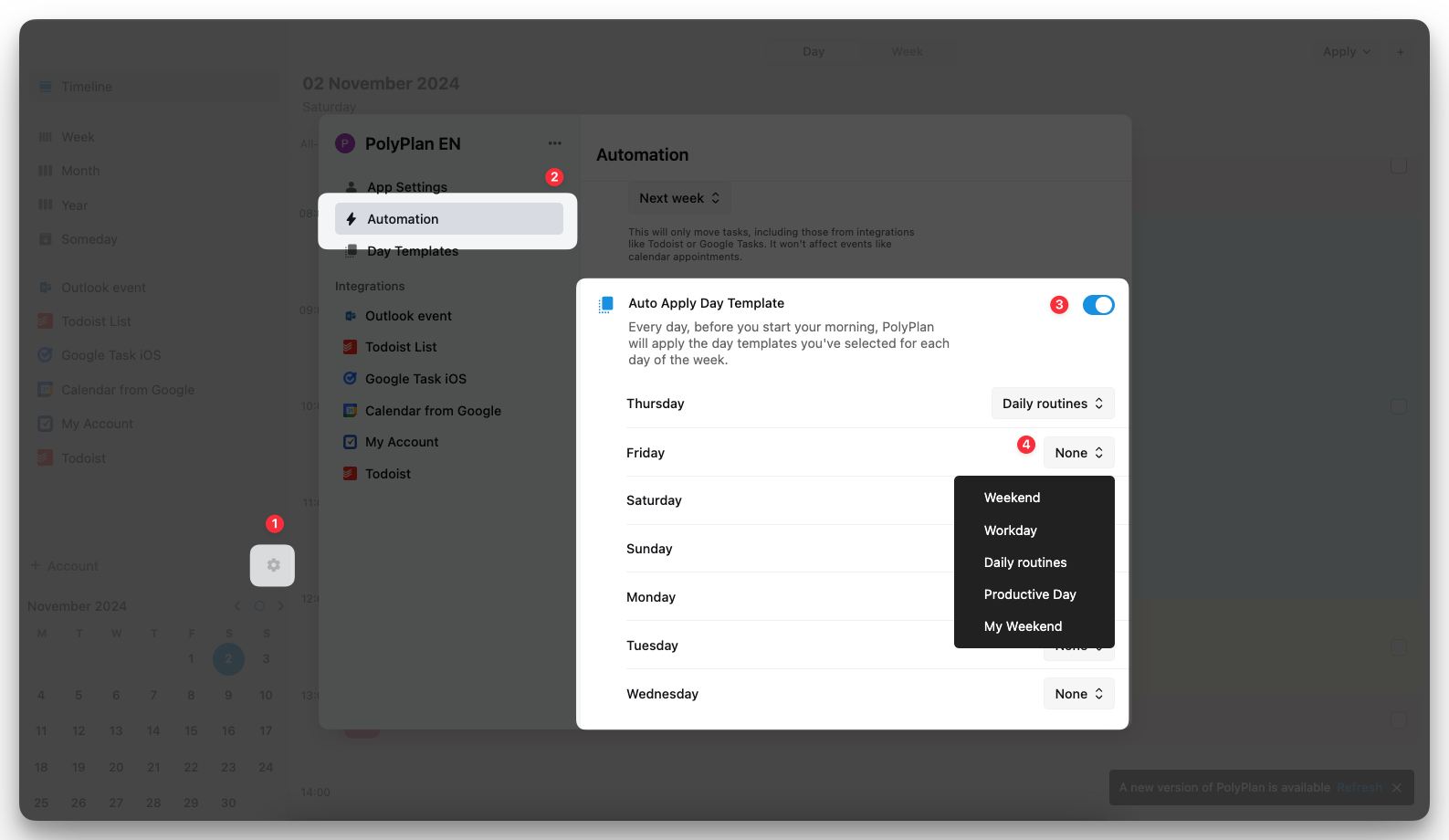
Use web & desktop app
On the left sidebar, click the Settings icon
Navigate to the Automation section
Find the section Auto Apply Day Template, and click on toggle to enable.
For each day, click on the field on the right and choose a template in the list
Common Questions
What happens if I have existing tasks on a day?
The template will add new tasks alongside existing ones. Existing tasks won't be removed or modified.
Can I override the automatic template application?
Yes, you can manually modify your schedule after the template is applied, or apply a different template.
Can I apply several templates at once for a day?
Yes, you can. But be aware of any possible conflict that can make your day messed up.
What if I want to skip the template application for a specific day?
Leave that day's template selection empty in the automation settings.
Will this affect my recurring tasks and events?
No, Auto Apply Day Templates only add template tasks and won't interfere with existing recurring items or calendar events.
Was this helpful?
Still need help? Share an idea